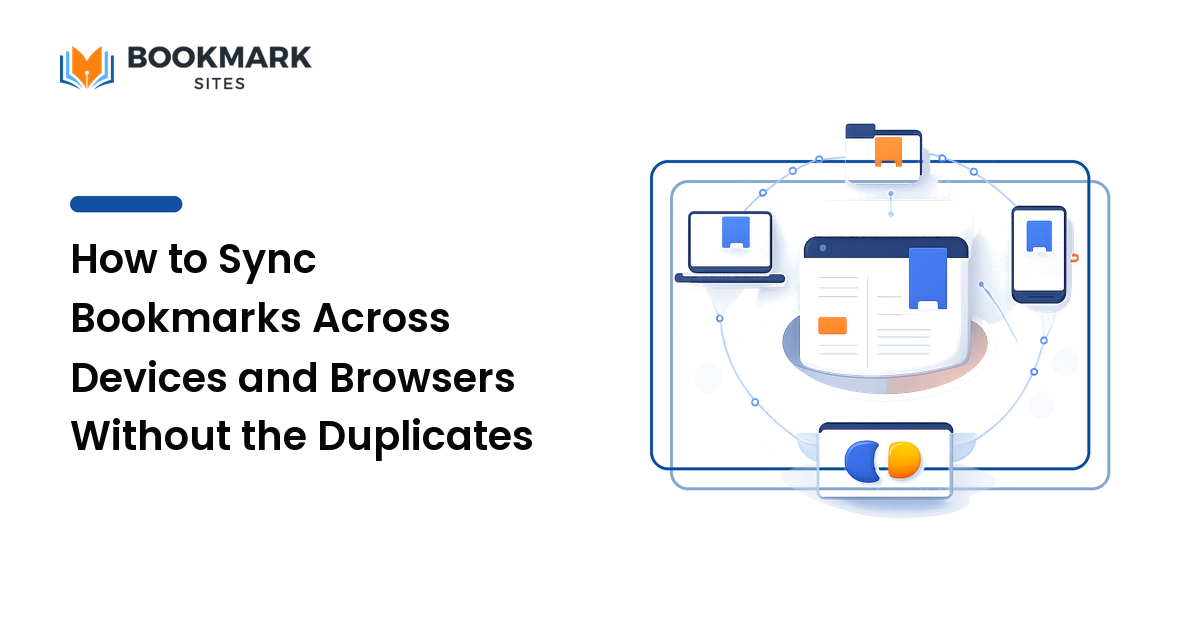
You save a page on your laptop, reach for it on your phone that evening, and it isn't there. Bookmark sync is supposed to prevent exactly this — but it only helps if you know what it does and doesn't cover.
The takeaway up front: your browser's built-in sync keeps the same browser identical across your devices — but nothing native carries bookmarks between different browsers. So syncing well is two jobs: turn on native sync for the same-browser case (easy), and deliberately bridge the gaps between browsers yourself (the part people miss). Do both and your saved pages follow you everywhere; do only the first and you'll keep hitting walls.
What "syncing bookmarks" actually means (and how it differs from a backup)
Syncing means your bookmarks live in an account, not just on one device, so every device signed in shows the same live library. Save on one and the link appears on the others in seconds; delete on one and it disappears everywhere — the crucial catch.
That last point is why sync is not a backup. Its whole job is to keep your devices identical, so it copies your mistakes too: a deletion or wiped folder propagates everywhere as fast as a save. A backup is the opposite — a frozen snapshot that doesn't change when your live library does. You want both. This guide is about sync; for the snapshot side, see how to back up and move your bookmarks.
Step 1: Turn on your browser's built-in sync
Start here — it solves the most common case (the same browser on several devices) for free. Each major browser has its own account and sync switch:
- Chrome: sign in with a Google account, then open Settings → You and Google → Turn on sync. Bookmarks sync to Chrome on every device you sign into.
- Firefox: create a free Mozilla account, then go to menu → Sign in to Sync. Firefox Sync is end-to-end encrypted by default.
- Edge: sign in with a Microsoft account and turn on sync under Settings → Profiles → Sync. Edge is Chromium-based but uses Microsoft's account, not Google's.
- Safari: there's no Safari account — it rides on iCloud. On iPhone, iPad, and Mac, enable Safari in your iCloud settings, and bookmarks sync across your Apple devices.
Which browser syncs where:
| Browser | Account you need | Syncs to | Syncs to a different browser? |
|---|---|---|---|
| Chrome | Chrome on any device | No | |
| Firefox | Mozilla | Firefox on any device | No |
| Edge | Microsoft | Edge on any device | No |
| Safari | iCloud (Apple ID) | Safari on Apple devices | No (natively) |
Every native sync is a walled garden — the wall the rest of this guide gets you over.
Step 2: Bridge bookmarks across different browsers
Here's the part no built-in switch handles: the Chrome, Firefox, Edge, and Safari sync systems don't talk to each other. They're tied to different accounts (Google, Mozilla, Microsoft, Apple) with no shared protocol, so a bookmark saved in Chrome never appears in Firefox on its own. Even Chrome and Edge — both built on Chromium — won't sync with each other, because the account underneath differs. Dedicated cross-browser tools have come and gone (Xmarks, the best known, shut down in 2018), so it pays to choose an approach you control. Three work today, in rough order of effort:
- Periodic manual export/import. Every browser reads and writes the same universal
bookmarks.htmlfile, so you can export from one and import into another to re-align them. Zero setup and always works, but it's a manual snapshot, not live sync — fine occasionally, tedious daily. - An account-based bookmarking service. Save keepers to a service on the web instead of inside one browser, then open it from any browser or device via a small extension or its website. Your real library becomes browser-independent, with tags and cross-device search built-in bookmarks handle poorly. The trade-off: it's a second home for links, kept separate from everyday browser-bar shortcuts.
- A sync extension with your own backend. Open-source extensions such as Floccus can sync a bookmark folder across Chrome, Firefox, and Edge using a cloud store you provide (Nextcloud, WebDAV, or Google Drive) — genuinely cross-browser and private to you, but the most technical to set up and yours to maintain.
Pick by how often you switch browsers: rare means manual export; daily means a service or extension so it stays live.
Step 3: Sync bookmarks between your phone and computer
Phone-to-computer is usually the same-browser case in disguise, so it's easier than it feels. The rule: match the browser and sign into the same account on both.
- Chrome, Firefox, or Edge: install the mobile app, sign in with the same account, and confirm sync is on. Saved pages then flow both ways.
- iPhone plus Windows PC: the awkward one, since Safari isn't on Windows. Either use Chrome (or Edge or Firefox) on both devices, or install iCloud for Windows, which syncs your Safari/iCloud bookmarks into Chrome, Firefox, or Edge on the PC through an extension.
- Mixed Android and iPhone household: use a browser that exists on both (Chrome and Firefox do) rather than each platform's default, so one account covers every device.
The failure people hit is mixing browsers per device — Safari on the phone, Chrome on the laptop — and expecting sync to bridge them. It won't. Standardize on one browser, or move keepers to a browser-independent service.
Step 4: Avoid duplicates and win sync conflicts
Most sync messes are duplicates, created at setup when the same links exist in two places and you connect them. Sequencing prevents it:
- Sync into an empty target, not a full one. On a new device or browser, let the established library sync in first, before you add anything locally.
- Import once, then rely on sync. A one-time HTML import plus live sync of the same set is the classic way to double every link. Do one or the other, never both.
- Let the newest edit win, then dedupe. If two devices are edited offline and reconnect, sync usually keeps both versions rather than deleting data — so you get duplicates, not losses. Skim and remove the copies afterward.
- Deduplicate on desktop. Bulk-deleting duplicates is far faster with a keyboard and a real bookmark-manager window than on a phone.
The principle: one clean merge, then let sync maintain a single copy — don't keep pouring full sets into each other.
Step 5: Keep your synced bookmarks private
Synced bookmarks travel through a company's servers, so it's worth knowing who can read them — they quietly reveal what you research, buy, bank with, and read.
- Turn on end-to-end encryption where it's offered. Firefox Sync has it by default; Chrome lets you add a sync passphrase (Sync → Encryption options) so Google can't read your synced data; Apple offers Advanced Data Protection for stronger end-to-end coverage.
- Guard the account, not just the browser. Sync is only as secure as the Google, Mozilla, Microsoft, or Apple login behind it — use a strong, unique password and two-factor authentication.
- Mind shared devices. Signing into sync on a borrowed computer copies your whole library onto it — sign out fully and remove the profile when done, or use a guest profile.
Your bookmark sync checklist
- Turn on native sync and sign into the same account on every device.
- Standardize on one browser across phone and computer, or route keepers to a browser-independent service.
- For cross-browser needs, pick one bridge: manual export, a service, or a sync extension.
- Merge libraries once; don't import full sets twice.
- Enable end-to-end encryption or a sync passphrase, plus two-factor authentication.
- Keep a dated HTML export as backup — sync is not a backstop.
Frequently asked questions
How do I sync bookmarks across devices?
Sign into your browser's account — Google for Chrome, Mozilla for Firefox, Microsoft for Edge, or iCloud for Safari — on each device and turn sync on. As long as it's the same browser and account everywhere, your bookmarks stay identical across phones, tablets, and computers automatically.
How do I sync bookmarks between two different browsers, like Chrome and Firefox?
There's no native way — their sync systems don't connect. Bridge them yourself: export and import the universal HTML file to re-align them, save keepers to a browser-independent service you open from either browser, or use a cross-browser sync extension backed by your own cloud storage.
Why do my bookmarks show up twice after syncing?
Duplicates almost always come from connecting two libraries that already share links — usually a manual import layered on top of live sync. Pick one method per library, then deduplicate the doubled folder on a desktop, where bulk deletion is quick.
Is bookmark sync the same as a backup?
No. Sync keeps your devices identical, so a deletion or corruption spreads everywhere instantly. A backup is a frozen snapshot that survives those mistakes — keep a periodic HTML export alongside sync so a bad edit stays recoverable.
Can I sync bookmarks between an iPhone and a Windows PC?
Yes. Either use the same non-Safari browser (Chrome, Firefox, or Edge) on both devices, or install iCloud for Windows, which syncs Safari's iCloud bookmarks into a browser on your PC through an extension.
Get your saved pages to follow you everywhere
Syncing bookmarks well is two moves: switch on native sync so one browser stays identical across your devices, then deliberately bridge the gaps between browsers yourself. Standardize where you can, keep one clean copy instead of many colliding ones, and never treat sync as your only safety net.
Ready to keep the pages worth keeping available on every device and browser? Build a synced, searchable library you actually own with BookmarkSites.