You're switching from Chrome to Firefox, or setting up a new laptop, and a quiet worry kicks in: what happens to the hundreds of links I've saved? Most people either trust sync to handle it or copy nothing and start over. Both are mistakes. Moving bookmarks safely is genuinely easy — once you understand the one file format that makes it possible.
The takeaway up front: every major browser can export your bookmarks to a single HTML file, and import that same file back in. That one portable file is both your real backup and your migration tool. Sync is a convenience, not a backup — it can propagate a deletion as easily as a save. So before you move anything, export to HTML, stash the file somewhere safe, and treat it as your source of truth.
The universal format that moves bookmarks anywhere
There's a quietly useful piece of standardization at work here. Long ago, browsers settled on a common way to export bookmarks: a plain HTML file, usually named something like bookmarks.html. Open it in a text editor and it's just a nested list of links with titles and folders; open it in a browser and it renders as a clickable page.
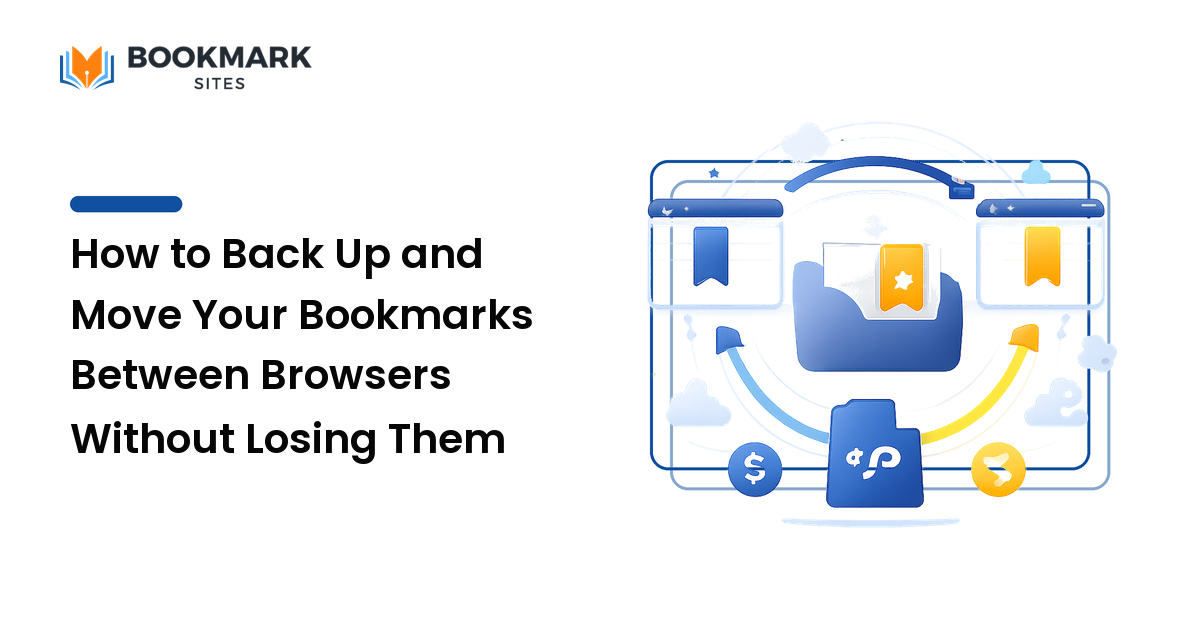
Because the format is shared, it crosses every boundary that normally trips people up. It moves between browsers (Chrome can read a file Firefox wrote; Safari, Edge, and Brave all speak the same dialect) and between computers (the file is yours to copy to a USB stick, email, or cloud storage — no account required). A file you exported last year still imports today, because it isn't tied to a service that might disappear. So whether you're migrating, backing up, or merging, you're really just moving this one file around.
How to export your bookmarks (the backup step)
Do this first, every time, before any migration or big cleanup. It costs about ten seconds and it's the safety net that makes the rest risk-free. The exact menu path varies by browser, but the shape is always the same:
- Open the bookmark manager (under a "Bookmarks" menu or the settings/library area) and find "Export bookmarks to HTML." It often hides behind a small "⋮" or "Import and Backup" button inside the manager, not on the main menu.
- Save it deliberately. Name the file with the date and source —
bookmarks-chrome-2026-06.html— and don't bury it in Downloads where it'll get cleaned out. - Keep it off the machine — cloud storage, an external drive, or a self-email. A backup that dies with your laptop isn't a backup.
That's the whole thing: one file, dated, stored off-device. Repeat it every few months and before any move, and the "I lost everything" scenario never happens.
How to import into a new browser (the migration step)
Once you have the HTML file, moving it into another browser is the mirror image of exporting: open the bookmark manager in the destination browser, choose "Import bookmarks from HTML" (usually near the export option), and select your file. The browser reads the nested structure and recreates your folders and links.
Imported bookmarks usually land in a new folder named something like "Imported" or "From HTML" rather than scattering into your existing structure — a feature, not a bug, since it keeps your old and new libraries separate so nothing overwrites.
Most browsers also offer a direct import that pulls bookmarks straight from another browser on the same computer, skipping the file. That's handy for a same-machine switch, but the HTML route always works — across computers, operating systems, and when the old browser isn't installed on the new device. When in doubt, use the file.
Merging two libraries without creating a mess
The trickiest case isn't a clean move — it's when you already have bookmarks in both browsers and want them combined. Import naively and you'll get duplicates and overlapping folders. A little sequencing avoids that:
- Pick a primary. Choose the browser whose library is bigger or better organized as your base, and import the other into it — not the reverse.
- Let it land in quarantine. Because imports arrive in their own folder, the incoming set stays contained — don't merge it into your main structure yet.
- Deduplicate, then fold in. Skim the imported folder, delete links you already have, then drag only the genuinely new keepers into your real structure — tagging or filing them on the way. Delete the empty quarantine folder when you're done.
The principle keeps any library healthy: don't dump everything together and hope — merge through a holding area so you control what joins your collection.
Why sync is not a backup (the trap that bites people)
Here's the misconception that causes real loss. Browser sync — the feature that mirrors your bookmarks across every device signed into your account — feels like a backup. It isn't.
Sync's job is to keep your devices identical, which is exactly why it's dangerous as your only safety net: delete a bookmark on your phone and sync deletes it on your laptop too; clear or corrupt a folder and the mistake propagates everywhere in seconds. Sync doesn't preserve your library — it preserves whatever state it's currently in, broken ones included.
A real backup is the opposite: a frozen snapshot that doesn't change when your live library does. That's exactly what the dated HTML export gives you — if sync wipes something, you reach for last month's file and restore it. So use sync for everyday convenience, but keep periodic exports as the actual backstop. Then you get both.
A more durable home for the links you truly keep
Export-and-import exists because browser bookmarks are locked to one app by default. The deeper fix is to stop locking your keepers there in the first place. Save your genuine references to an account-based service that lives on the web rather than inside Chrome or Safari, and switching browsers no longer touches them — there's nothing to export because they were never trapped, and you gain tags and cross-device search that built-in bookmarks handle poorly. The social bookmarking guide covers how that approach works and when it beats browser bookmarks. The split most people land on: keep daily-use links in the browser bar for speed, and route long-term keepers to a service you control.
FAQ
How do I export bookmarks from my browser?
Open the bookmark manager, look for an "Export bookmarks to HTML" option (often behind an "Import and Backup" or "⋮" button), and save the file. Name it with the date and store it somewhere that isn't the same computer.
Can I move bookmarks from Chrome to Firefox, or any browser to another?
Yes. Every major browser exports to and imports from the same HTML format, so it crosses freely between Chrome, Firefox, Safari, Edge, Brave, and others. Export an HTML file from the old browser, then use "Import bookmarks from HTML" in the new one. On the same computer, many browsers can also import directly without a file.
How do I transfer bookmarks to a new computer?
Export to an HTML file on the old machine, move it to the new one (cloud, USB, or email), then import it in the new browser. The file approach works even across different operating systems and when the old browser isn't installed on the new device — which is why it's more reliable than a direct browser-to-browser import.
What happens to my folders and tags when I move bookmarks?
Folders survive — the HTML format preserves your nested folder structure, so it rebuilds in the destination browser. Tags are trickier, since built-in browser bookmarks don't really use tags the way dedicated services do, so that data may not carry across. If you rely on tagging, that's a strong reason to keep important links in an account-based service rather than the browser alone.
Move with confidence, not luck
Switching browsers or computers should never cost you your saved pages. The mechanics are simpler than the anxiety suggests: one universal HTML file exports out of any browser and imports into any other, folders and all. Make that export a habit — dated, stored off-device — and every migration becomes a non-event while you build a real backup at the same time.
Ready to stop worrying about losing links every time you change browsers? Build a durable, searchable library you actually own with BookmarkSites.