You glance at the top of your browser and the tabs have shrunk to slivers — thin vertical lines with no titles, maybe a favicon if you're lucky. You know there's something important in there. You're just not sure which sliver it is, and you're definitely not going to close any of them to find out.
The takeaway up front: too many open tabs is not a willpower problem — it's a storage problem in disguise. Tabs pile up because you're using them as a to-do list, a reading list, and a filing cabinet all at once, and a browser tab is a terrible version of all three. The fix isn't to heroically close everything for one clean afternoon. It's to give each tab a real home — a bookmark, a reading queue, a task, or the trash — so closing it costs you nothing. Do that, and a dedicated tab manager stops being a novelty: it becomes the tool that holds your live session while everything longer-lived moves somewhere findable.
Why tabs pile up in the first place
Nobody sets out to keep forty tabs open. It happens because each tab is quietly doing a job it was never built for.
A tab you're afraid to close is almost always standing in for something else. It's a reminder ("deal with this later"), a reading list ("read when I have time"), a reference ("I'll need this again"), or a task in progress ("I'm mid-way through this"). The tab feels safer than writing the thing down, because it's right there — one click and you're back where you left off. So you leave it open, and do it again, and again.
The trouble is that a browser tab has no memory beyond "this page is loaded." It can't remind you why you kept it, when you meant to come back, or which project it belongs to. Twenty tabs in, you've built a to-do list with no labels, no due dates, and no order. The pile grows precisely because closing a tab feels like deleting a thought.
The real cost of a wall of tabs
Keeping everything open feels free. It isn't.
Every open tab is a small tax on your attention. A crowded tab bar is a standing list of unfinished business in your peripheral vision — a low hum of "you still have to deal with all of this." The more tabs, the louder the hum.
They also tax your machine. Open pages hold memory, and some keep working in the background — auto-refreshing feeds, playing audio, running scripts. A browser stuffed with tabs runs hotter and slower — and buries the one tab you actually need.
And they're fragile. A crash, an accidental window close, or a phone that drops the session, and the whole wall can vanish. If those tabs held your only copy of "things I need to remember," you've lost it with no way to reconstruct. Tabs are a working surface, not a safe — treating them as storage is the root mistake.
Triage: sort every tab into one of four buckets
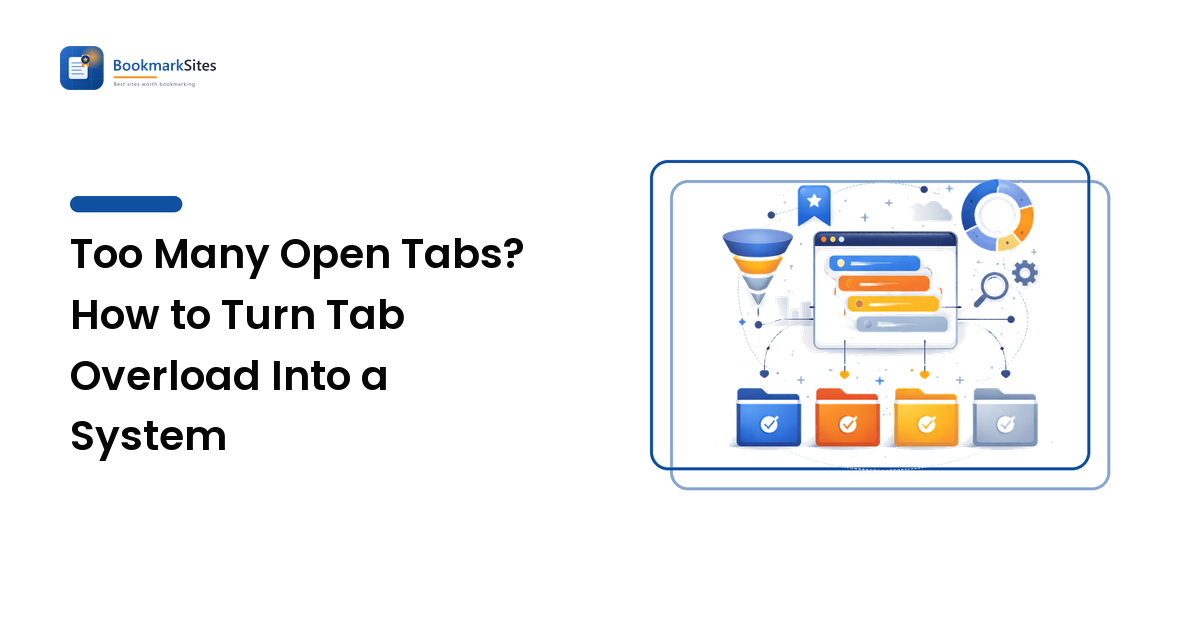
The way out isn't closing tabs at random until the pile feels smaller. It's making one fast decision per tab and sending it somewhere it belongs. Go left to right and ask each one: what is this tab actually for? There are only four honest answers.
1. Keep — it belongs in your library
This is a reference you'll want again: documentation, a tool you reopen, a supplier's page, an article you'll cite. Its value is in retrieval, not in staying open. Bookmark it, tag it, and close it. Add two or three plain labels as you save, so it resurfaces later from any angle — a keeper with no tag is nearly as lost as a tab in a wall of slivers. If you save a lot of these, built-in browser bookmarks eventually creak under the weight, which is when a dedicated app pays off; our guide on how to choose a bookmark manager walks through what to look for.
2. Read — it belongs in a queue
This is something you genuinely intend to read, just not this minute — a long article, an essay, a report. It belongs in neither your live session nor your permanent library. Send it to a read-it-later queue and close it. A queue is built for exactly this: a short, self-draining list of things to consume soon. The distinction is worth its own read — see read it later vs. bookmarks — because mixing "read soon" with "keep forever" turns both into piles you avoid.
3. Do — it belongs on a task list
This tab is a task wearing a page's clothing: "reply to this," "book this," "compare these two before deciding." The page is just where the work happens; the task is the thing you're afraid to lose. Write the task down — in whatever list you already trust — with enough context to reopen the page later, then close the tab. A task on a real list has a place, an order, and a way to be marked done; an open tab has none of those.
4. Done — it belongs in the trash
Be honest: a big share of any tab pile is finished business — the thing you looked up, the article you already read, the page you opened three days ago and forgot. It's not a keeper or a task, just residue. Close it. No bookmark, no queue, no guilt. Clearing these first is the fastest way to shrink the wall and see what remains.
Close the loop so it doesn't just refill
Triage once and you'll feel great — until the wall rebuilds over the next week. The point isn't a one-time purge; it's changing what a tab means to you. A tab is a page you're using right now. The second it becomes "later," "again," or "to-do," it has a destination that isn't the tab bar — and moving it there is the habit that keeps the pile from coming back.
Two small mechanics make that stick. First, decide the moment a tab goes stale, not in a monthly cleanup — the instant you think "I should keep this," bookmark it and close it. Second, learn the two keyboard shortcuts that matter: reopen-closed-tab, so a mis-click is one keystroke to undo, and bookmark-this-page, so saving beats leaving the tab open. When keeping is slower than closing, tabs accumulate; flip that, and they don't.
When a tab manager earns its place
For a lot of people, the four buckets plus two shortcuts are the whole answer. But some workflows genuinely run on many live tabs at once — and that's where a purpose-built tab manager stops being clutter and becomes infrastructure.
What a good tab manager actually does
Tab managers exist because the browser's own tab bar gives up past a certain width. The useful ones do some mix of a few things: group and name tabs by project, so a research session, a client, and your inbox live in separate labeled clusters; save and restore whole sessions, so you can close a twelve-tab project and reopen the exact set with one click; suspend inactive tabs to reclaim memory; and give you a searchable, readable list of everything open, showing titles instead of slivers. The trade-off is one more tool to trust with your session, so the payoff has to be real.
Signs you've outgrown manual wrangling
You don't need a tab manager because you have too many tabs — you need one because your work legitimately spans many live pages and the built-in bar can't keep up. The honest signals: you run several projects in parallel and want each kept separate; you'd reopen a saved cluster of tabs as a set (a recurring report, a research thread) rather than a single bookmark; or you keep so much live that memory and clutter slow you down. If that's you, the field ranges from lightweight session-savers to vertical-tab sidebars and tab-suspenders, each worth comparing before you commit.
A tab routine you'll actually keep
Systems you have to remember don't survive. Anchor this one to things you already do.
- At the end of a task, close its tabs. The work is done; the residue doesn't need to follow you into the next thing.
- Once a day, run the four-bucket pass on whatever's crept in — keep, read, do, or close. Two minutes daily; an hour if left for a month.
- Once a week, empty the session deliberately: bookmark the keepers, queue the reading, list the tasks. If you use a tab manager, save the sessions worth restoring and close the rest.
The goal isn't a permanently empty browser — live work means live tabs, and that's fine. The goal is that every tab is something you're using now, and nothing important is trapped in a sliver you're afraid to close.
FAQ
How many open tabs is too many? There's no magic number — the threshold is the moment you stop being able to read the titles and start keeping tabs open out of fear rather than use. If you're scanning slivers by favicon, or afraid a crash would lose something you can't reconstruct, you've passed it. The important tabs need a durable home, not a wider tab bar.
How do I close tabs without losing what's in them? Give each one a destination before it closes. Keepers get bookmarked and tagged, reading goes to a read-it-later queue, tasks get written on your to-do list, and finished pages just close. Nothing is "lost" because nothing was only living in the tab. As a safety net, learn your browser's reopen-closed-tab shortcut so an accidental close is one keystroke to undo.
Do I need a tab manager, or are browser bookmarks enough? For most people, bookmarks plus a reading queue handle it — a tab manager is for workflows that genuinely run on many live tabs at once, where grouping, saving, and restoring whole sessions saves real time. If you rarely keep more than a handful open, a manager is overkill; if you juggle several projects a day, it earns its place.
Will closing tabs make my browser faster? Usually, yes. Open pages hold memory and some keep working in the background, so a browser packed with tabs runs slower and hotter. Closing the residue — or using a tab manager that suspends inactive tabs — frees those resources while keeping anything you'll need again saved somewhere you can find it.
Turn the wall of tabs into a system
A crowded tab bar isn't a character flaw — it's what happens when a browser tab gets drafted into being your to-do list, reading list, and filing cabinet all at once. Break the pile into its four honest parts — keep, read, do, done — and every tab has a home that isn't the tab bar. What's left is your actual live session, small enough to read.
Stop using open tabs as your memory. Send keepers to a searchable library, reading to a queue, tasks to a list — and if your work truly lives across many tabs at once, let a purpose-built tool hold the session. Browse BookmarkSites' shortlist of the best tab managers at BookmarkSites and pick one that fits how you actually work.