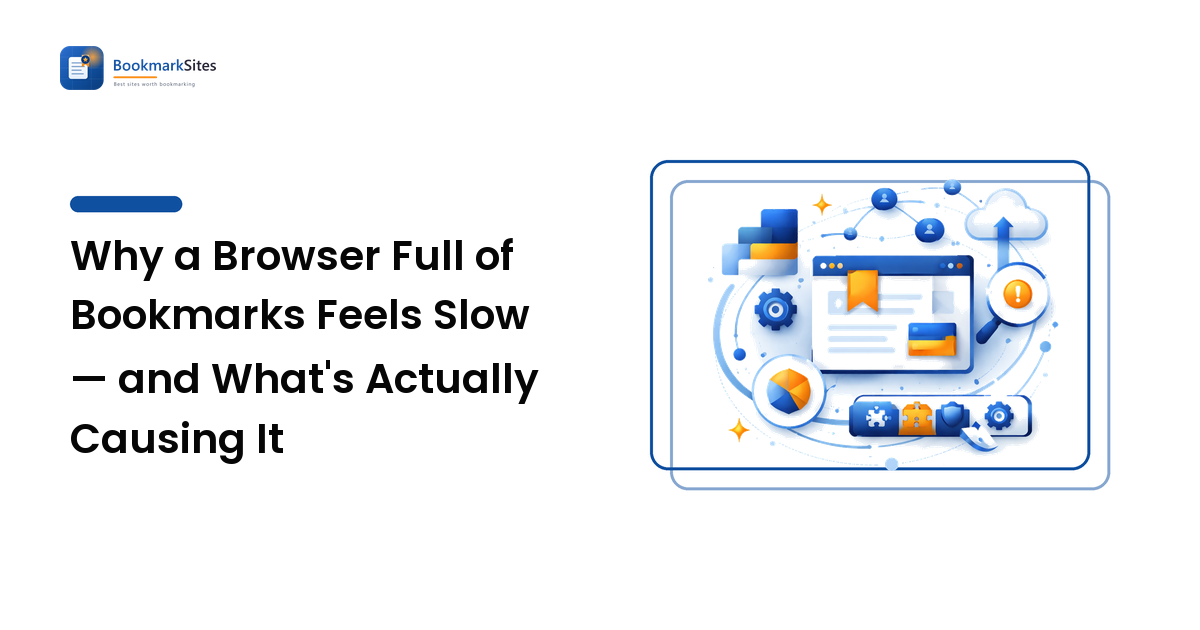
If your browser has become sluggish and you have thousands of bookmarks, the two facts are probably unrelated. Bookmarks are a small amount of structured text, they are read once when the browser starts, and they are not consulted while pages load. Deleting a few thousand of them will almost certainly change nothing you can feel. What does cause a slowdown is the machinery around the collection — the sync reconciliation, the site-icon store, extensions that walk the whole tree, and a bookmarks bar rendering hundreds of items. The count matters much less than the shape.
That distinction matters because the two problems have opposite fixes. Assume it is the count and you spend an afternoon deleting links you will want later, and end up with an equally slow browser. Find the real cause and the fix is usually a few minutes and costs you nothing.
How browsers actually store your bookmarks
Where they live explains why the count is so rarely the issue.
Chromium-based browsers keep bookmarks in a plain JSON file inside your profile folder, named Bookmarks — text, a nested list of titles, URLs and folders. Firefox keeps them in a database called places.sqlite, which also holds your browsing history; that detail matters later. Safari uses a property list file. Site icons are stored separately in every case.
Two consequences follow from that design:
- The file is read at startup, not on every page load. Its size affects how long the browser takes to become ready and how much memory the tree occupies afterwards. It does not sit between you and a website.
- The text itself is tiny next to everything else on your machine. Even a very large collection is a modest file compared with the browser cache, and it is not competing for the resources that render pages.
So "my bookmarks are slowing down my browser" usually translates to "something connected to my bookmarks is slow" — and that something is worth identifying rather than guessing at.
What genuinely gets slower as the collection grows
Several things scale with the size of the tree, and only one of them has anything to do with storage.
Sync reconciliation. The big one. Sync does not send a file; it reconciles a tree of individual items with a server and with every other device signed in, and every add, move, rename and delete is a change to be matched. A large tree, several devices and a history of imports produce a lot of reconciling — and it happens at startup, when you are least patient. If your browser is slow for the first minute after launch and fine afterwards, sync is the first suspect.
Address bar suggestions. As you type, the browser searches your bookmarks and history for matches. That query slows on a large corpus and slows much more when the underlying database is bloated. The symptom is distinctive: a lag between typing and suggestions appearing, on a browser that is otherwise fine.
Extensions that read the whole tree. Any extension granted bookmark access can enumerate every item you have. Some do it once; some do it every time their popup opens, or on a timer, or on every change. One badly behaved extension plus a large tree is the cause that most convincingly imitates "too many bookmarks", because it really does scale with the count.
Rendering long lists. Opening a folder with several thousand direct children is slow in a way that the same number spread over fifty folders is not.
Why the bookmarks bar is the part you actually feel
Of these, the bar is where the daily annoyance lives, and the reason is icons rather than links.
Every bookmark on the bar wants a site icon. Those icons are fetched and cached separately from the bookmark file, and drawing a row of hundreds of small images is more work than drawing a row of text. When the icon store is stale, corrupted, or rebuilding after a profile move, the bar shows blank squares and takes a visible moment to populate — which reads as "my bookmarks are slow" even though the links are untouched.
The practical version: what is on the bar costs more than what is in the tree. A bar holding a dozen folders is fast no matter how many thousands of links sit inside them, and a bar holding hundreds of loose items is slow even on a small collection. Moving items into folders fixes it; deleting them is not required.
Why the profile, not the bookmark list, is usually the culprit
Bookmarks share a home with everything else the browser accumulates, and the neighbours are heavier.
In Firefox the connection is direct: bookmarks and history share a database, so a very large history can make bookmark operations feel slow even though the bookmarks are not the cause. In every browser the profile also holds the cache, cookies, saved passwords, session data and each extension's storage. A profile carried across years and machines gets big, and startup work grows with all of it.
Then there are the causes that get blamed on bookmarks anyway: a wall of open tabs, an extension leaking memory, a machine short on memory, or security software inspecting every file the browser touches. All are commoner explanations than any bookmark collection, and all are worth ruling out before a cleanup.
Narrowing it down on your own machine
Ten minutes, in this order. Each step isolates one suspect, and you stop when the symptom changes.
- Note when it is slow. The first minute after launch points at sync or profile size; slow all the time points at extensions, tabs or the machine; slow only while typing in the address bar points at the history and bookmark index; slow only when you open the bar or the manager points at rendering and icons.
- Empty the bar without deleting anything. Make one folder, drag everything into it, leave the folder on the bar. If the sluggishness goes, it was rendering and icons — and you lost nothing.
- Start the browser with extensions disabled, or in a private window where most do not load. A dramatic improvement names the culprit; re-enable them one at a time to find which.
- Check the sync status page. A sync stuck mid-reconciliation, or repeatedly re-syncing, shows up there. Pausing sync briefly is a clean test: if startup gets quick, you have your answer.
- Create a brand-new profile and open it. The definitive test: a new profile is fast for everyone. If yours is fast too, the problem is inside your old profile rather than in the browser or the machine.
- Only then look at the count. If nothing above changed anything, the collection's size is worth addressing on its own merits — which are about finding things, not speed.
Fixes, in the order worth trying
Export a snapshot first. Every browser writes your whole collection to a single HTML file in seconds, and with that file stored elsewhere every step below is reversible — the full procedure is in backing up and moving your bookmarks.
- Crowded bar — nest items into folders. Keep only what you click weekly at the top level.
- Slow, repeated sync — usually duplicates from old imports, which multiply the tree without adding anything. Clearing them is the most effective sync fix; syncing bookmarks across devices and browsers covers avoiding the duplication in the first place.
- Extension overhead — audit which extensions have bookmark access and remove any you do not use deliberately.
- Bloated profile — clear the cache, prune history if you do not rely on it, or start a fresh profile with your bookmarks and passwords imported.
- A genuinely unmanageable collection — that is a findability problem rather than a performance one, and cleaning up thousands of browser bookmarks is the reversible way through it.
When the collection really is the problem
Size does genuinely bite in a few cases. Sync services set their own limits, and some browsers document a ceiling above which bookmarks stop syncing — check your browser's documentation rather than a forum post, because the figure is theirs to change. Repeated imports are the classic way to reach it: each one copies the whole tree again, so three or four multiply a collection without a single new page being saved. Older machines feel a large tree more, and a profile migrated across browsers for years carries damage that deleting does not fix but a fresh profile does.
Even then the answer is not "delete bookmarks until it feels better" — it is to remove the duplication, or start a clean profile and import a snapshot you trust.
Frequently asked questions
Does deleting bookmarks make Chrome faster?
Rarely in a way you would notice. Deleting duplicates helps sync and clearing a crowded bar helps rendering, but removing links from folders you never open changes almost nothing. If the browser is slow, extensions, tabs or the profile are far likelier causes.
Is there a limit to how many bookmarks a browser can hold?
Browsers do not generally publish a practical storage limit, and local collections get very large without trouble. Sync is the part with a documented ceiling in some browsers, so if items stop appearing on other devices, check its sync documentation and look for duplicate imports.
Why is my bookmarks bar slow to appear, or showing blank icons?
Almost always the site-icon store rebuilding, especially after a profile move, an import or a browser update; the icons repopulate as you visit sites. If the bar itself is sluggish, it is holding too many individual items rather than folders.
Would a bookmark manager extension be faster than the browser's own?
Not inherently, and it is a trade-off rather than an upgrade: the extension is itself something the browser loads, and it gets full access to your collection. Move a huge library into one for its search and tagging, not because you expect it to be quicker.
My browser was fine yesterday and is slow today. Is that my bookmarks?
Almost certainly not. A collection that grew slowly over years does not cause an overnight change. Look at what changed recently: an update, a new extension, a sync event, or a machine now short on memory.
Rule out the cheap causes before the expensive ones
The order matters more than the fixes. Clear the bar, disable extensions, check sync, try a clean profile — every one is reversible and costs nothing. Only when those come back clean is the size of your collection worth addressing, and by then you are solving a findability problem rather than a speed one. Work through the rest of your browser bookmarking setup at BookmarkSites.